
Accessing Previews
1. Selecting view and Secure preview, will create a unique, non-indexable URL.
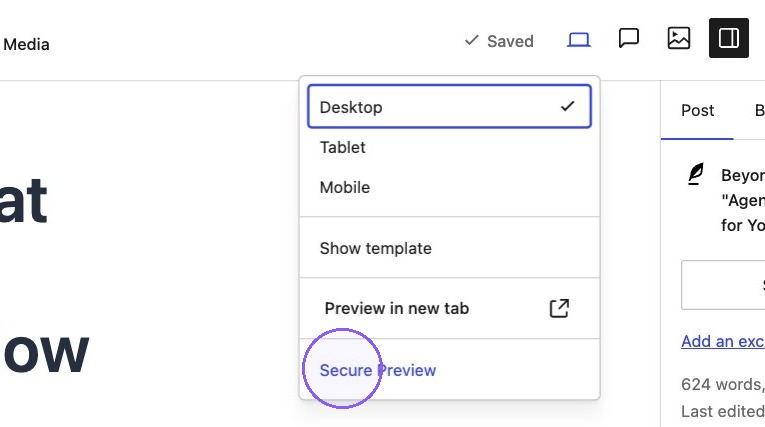
2. This allows the link to be shared via email, Slack, or other platforms to gather feedback without requiring the recipient to log in.
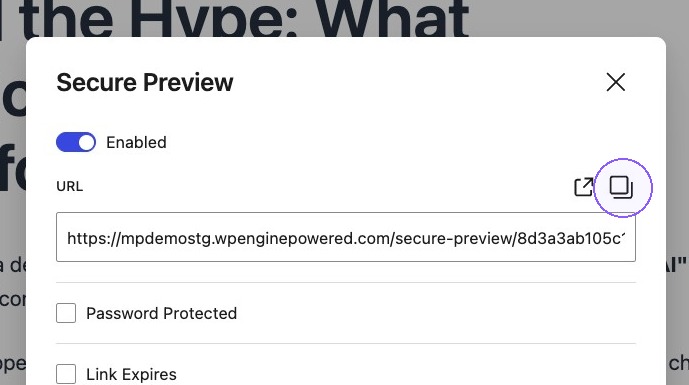
Preview Options
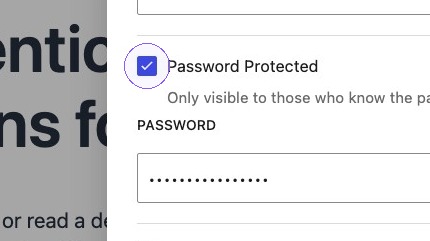
3. Checking the Password Protected checkbox, will auto generate a unique password for the preview. Hidden by default, this password can be changed to suit the users needs.
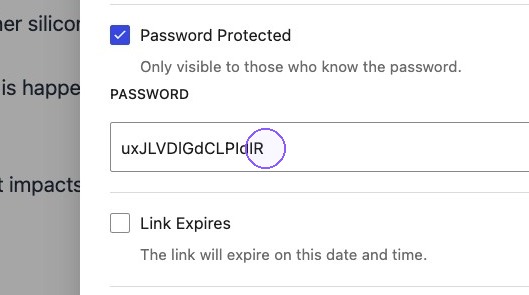
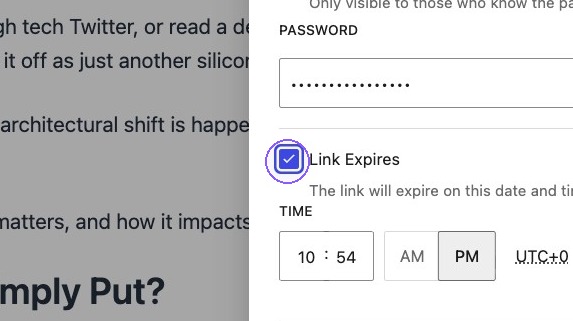
4. Users can also set expiration times for the link, making it available only for a desired duration.
Reviews on secure previews
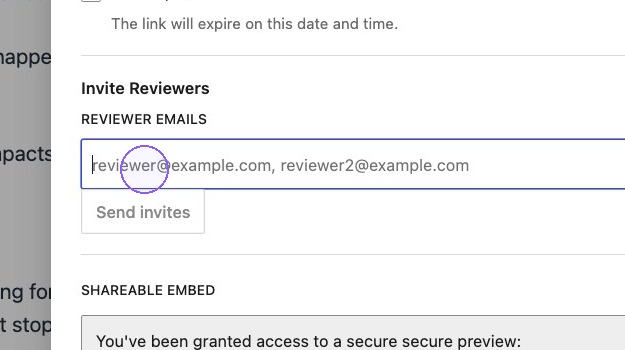
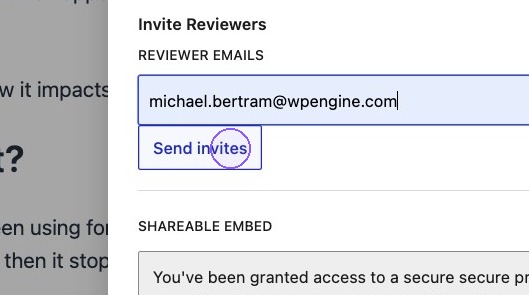
5. It’s possible for users to request a review of the secure preview link. Entering the email address of the reviewer, will allow you to send them an invite
Click Send invites
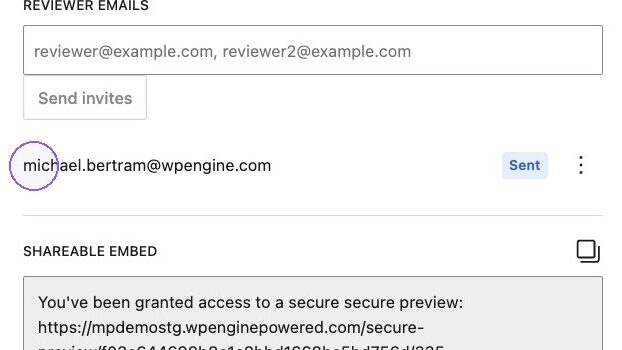
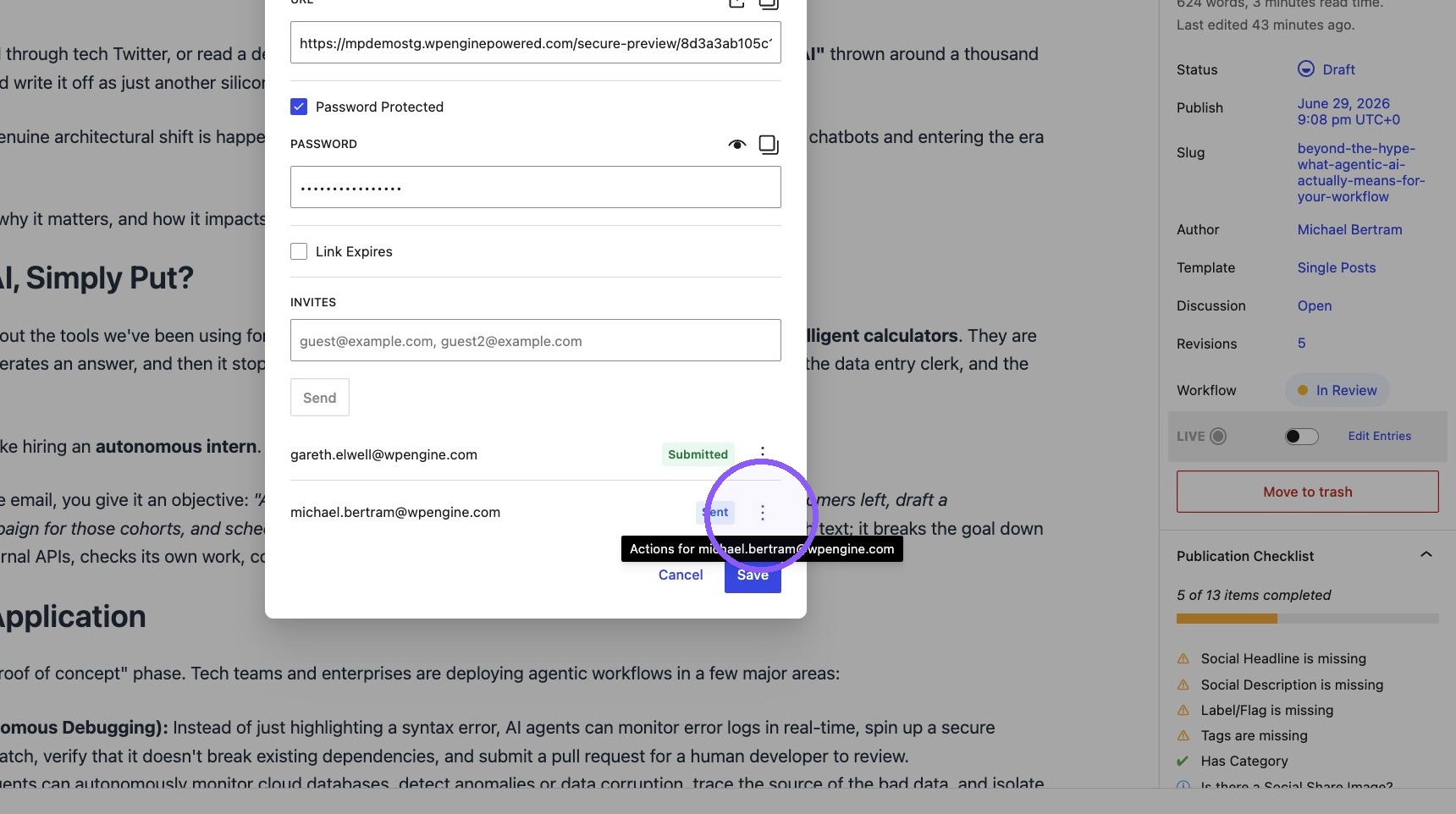
6. A list of reviewers can be found in the section below the input box.
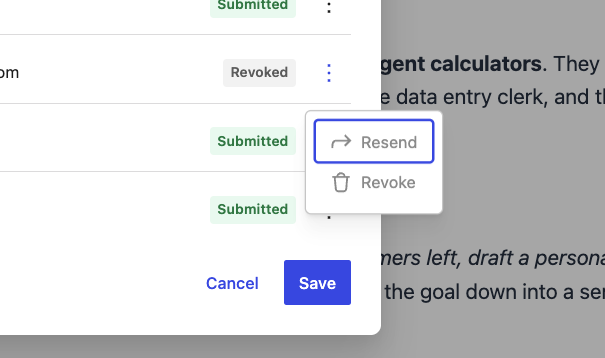
7. Click this icon.
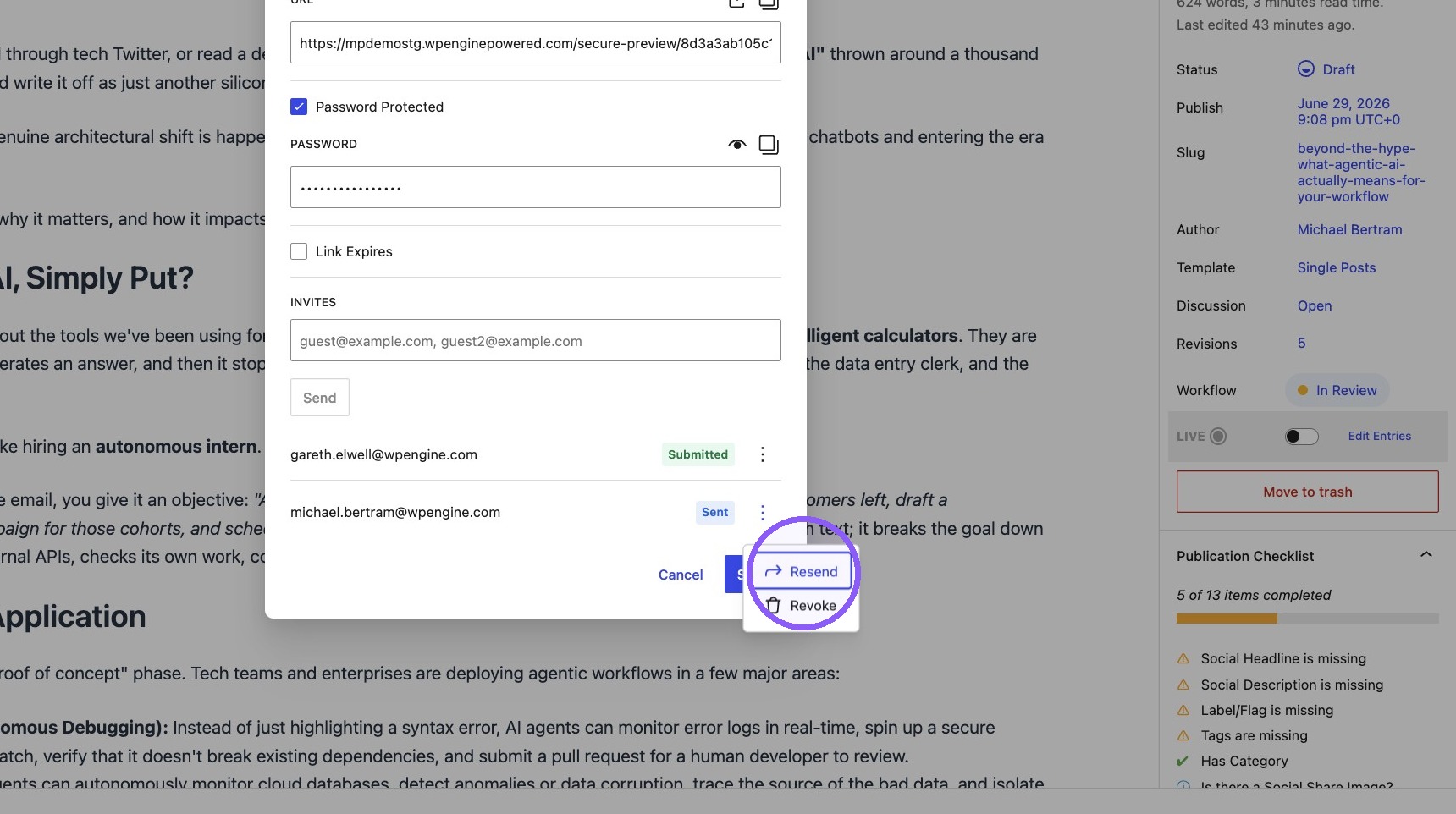
8. Click “Resend”
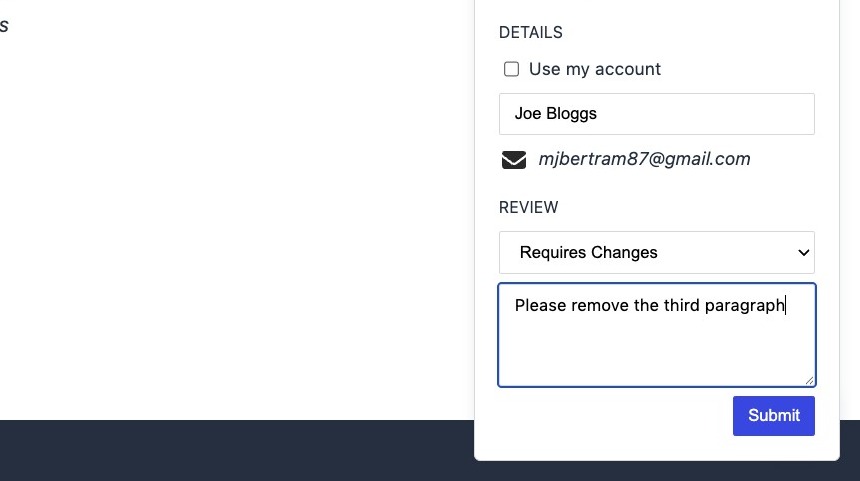
9. Using the provided link, the reviewer can select the option in the bottom right corner to Add a Review. The reviewer enters their name used for the invitation to submit feedback.The email field will automatically be populated with the reviewers email address
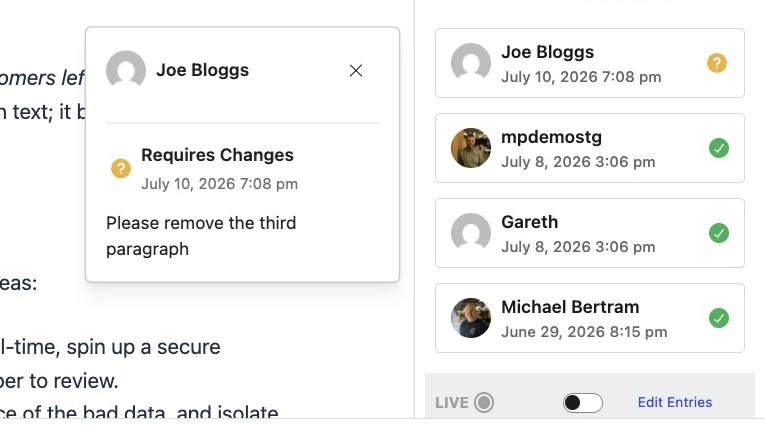
10. Once submitted, the review can be seen within the post sidebar.
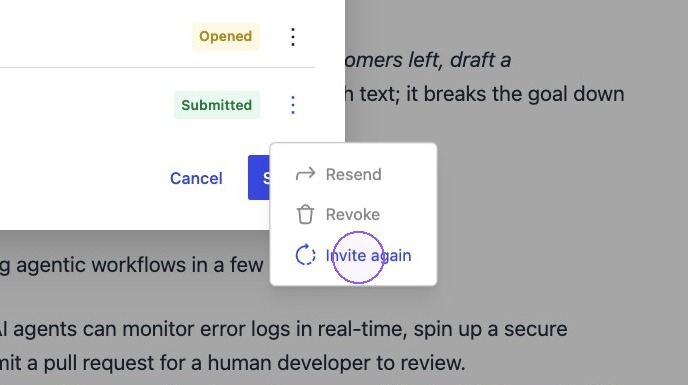
11. It’s possible to request additional reviews from the same user. Clicking the three dots and selecting invite again, will send the link again.
Review statuses
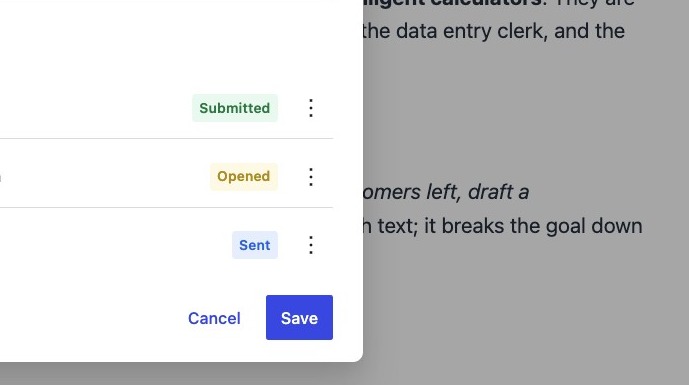
12. The status of each review will show next to each invited reviewer.

Submitted – The reviewer has opened the link and submitted a review.
Opened – The reviewer has opened the link but not yet submitted a review.
Sent – A review has been sent, but not yet accessed by the reviewer.
Removing access
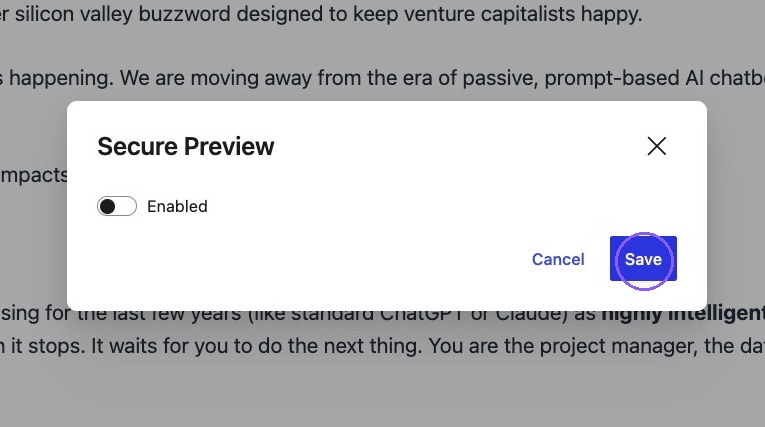
13. If access needs to be revoked, users can toggle off the secure preview feature remembering to save the settings, which immediately disables the previously shared link.
14. Access can be revoked on an individual level via the three dots next to the reviewer.

Please Note: The revoke access option is only accessible for users who have not yet submitted a review.