Post lock
Post Lock in WordPress is a feature designed to prevent multiple users from editing the same post simultaneously, thereby avoiding conflicts and potential data loss.
Taking over control of a post
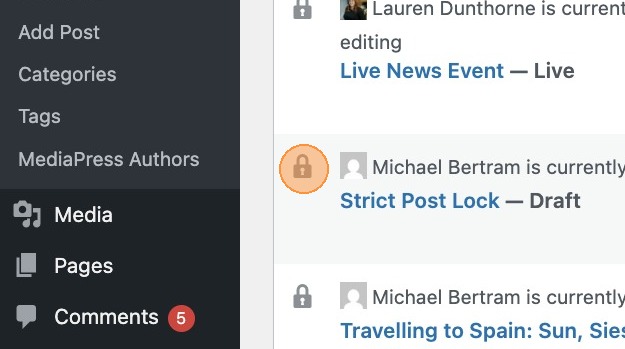
1. Within the dashboard, when viewing your list of posts, you will see any post that’s currently being edited by another user, is marked with a padlock icon, and the username of the person editing.

2. Selecting edit will display a popup window, informing you that someone is already editing the post and prompting you either to take over editing control, or exit the editor.
3. If a post is taken over, the original user will be notified of this. They will then need to exit the editor. Should they wish to take control again they can follow the steps above.

Please note: If editing control is taken from a user, the user’s saved changes will remain on the post and will not be lost.
Strict Lock

4. Enable the Strict Lock module in the MediaPress settings.
Browsers may pause background activity when a tab is inactive. As a result, WordPress’s native post lock checks (used to determine whether another user has taken over a post) may not run as expected.
Strict Lock ensures that when you return to an open tab, a check is immediately triggered to confirm whether the post was taken over while you were away.
It also increases the frequency of post lock checks, reducing the delay before a user is notified of a takeover to within 10 seconds.
Blocked saving
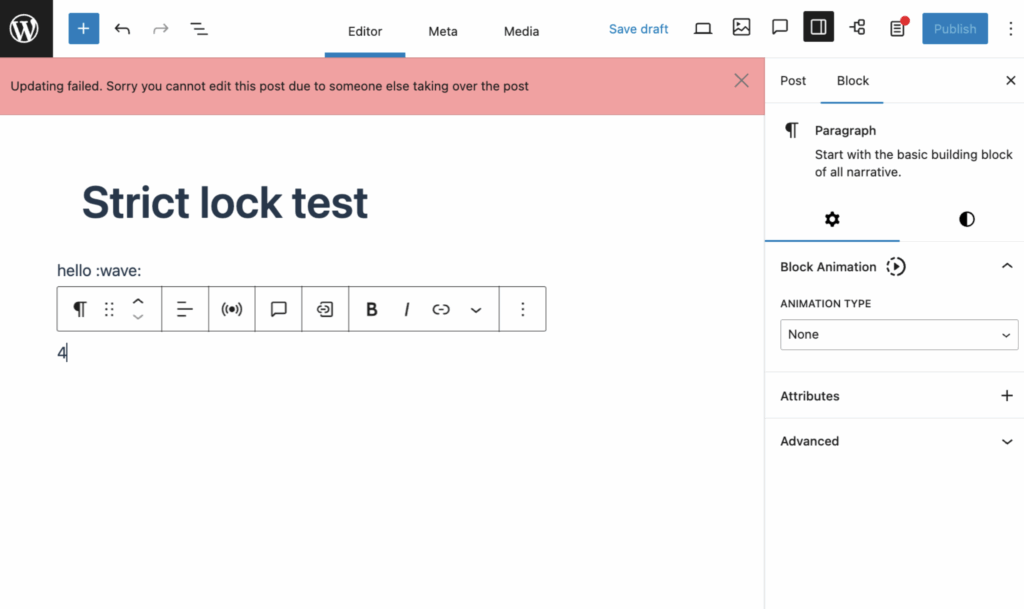
5. Saving is blocked if someone else has the post lock. This removes the ability to save data if you’re in a post which is locked by another user.
Forcing a page refresh

6. While editing a post, you may open a new tab and navigate away, leaving the editor open in the original tab. During this time, another user could take over the post, make changes, save them, and then exit the editor. When you return, you wouldn’t see the original notification because the post would still appear locked to you.
With strict lock enabled, an additional modal is displayed to inform you of this situation and prompt you to reload the page so you can receive the updated content.