Getting Started

1. Enable the MediaPress comments module in the MediaPress settings.
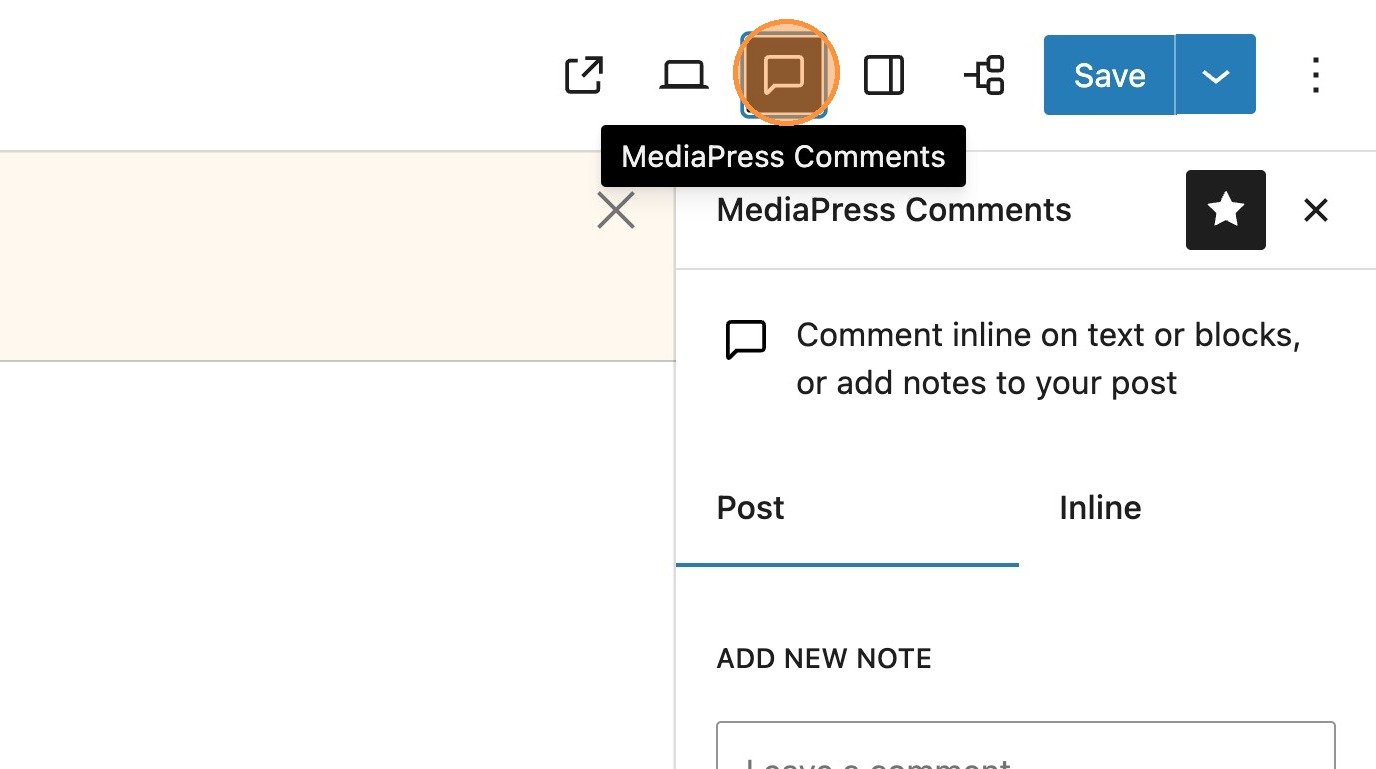

2. Once enabled, on any post your will see the comments icon in the top toolbar.
Adding comments to a post

3. It’s possible to add comments in a couple of ways. Within the sidebar you will see two tabs, post and inline. The first is to add a comment to the post as a whole. Within the post tab you will see the option to add new note.
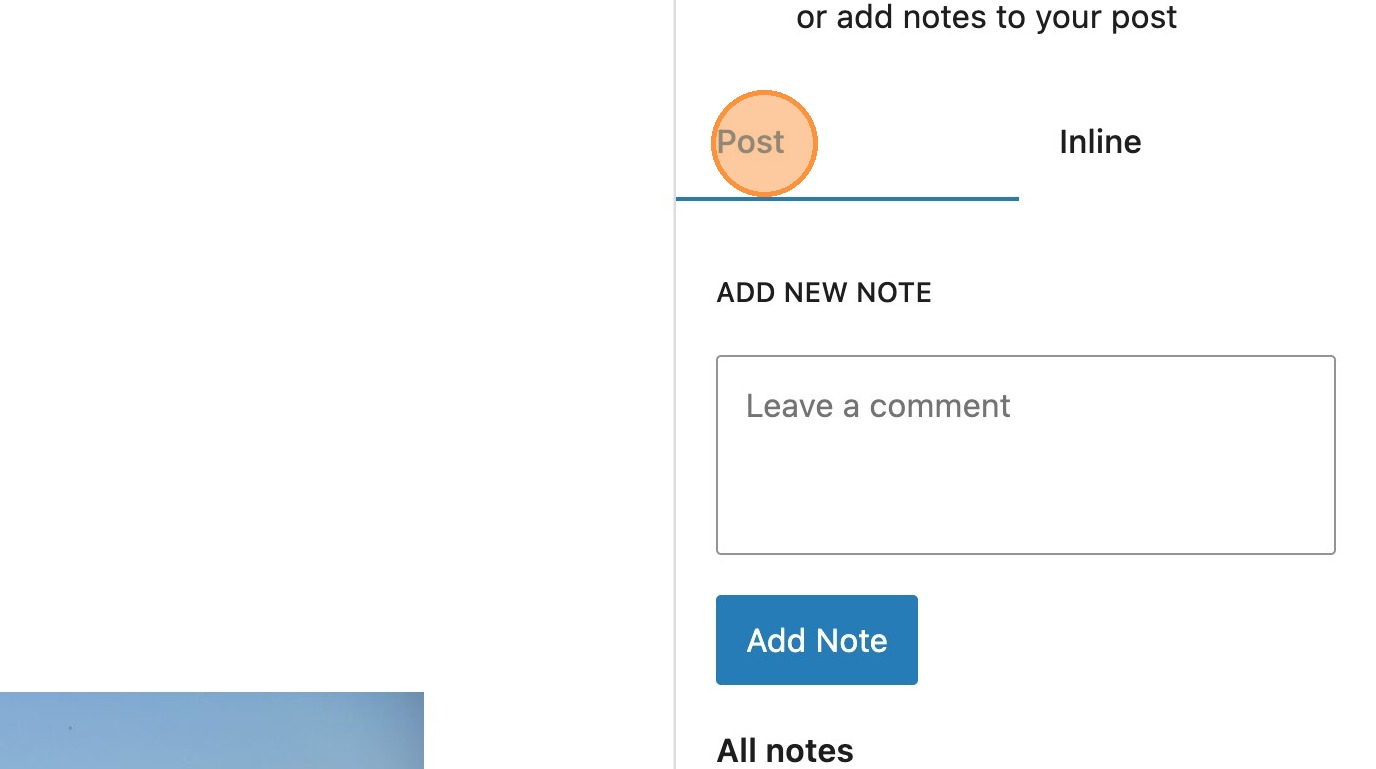
4. Here you can type your note and add note.
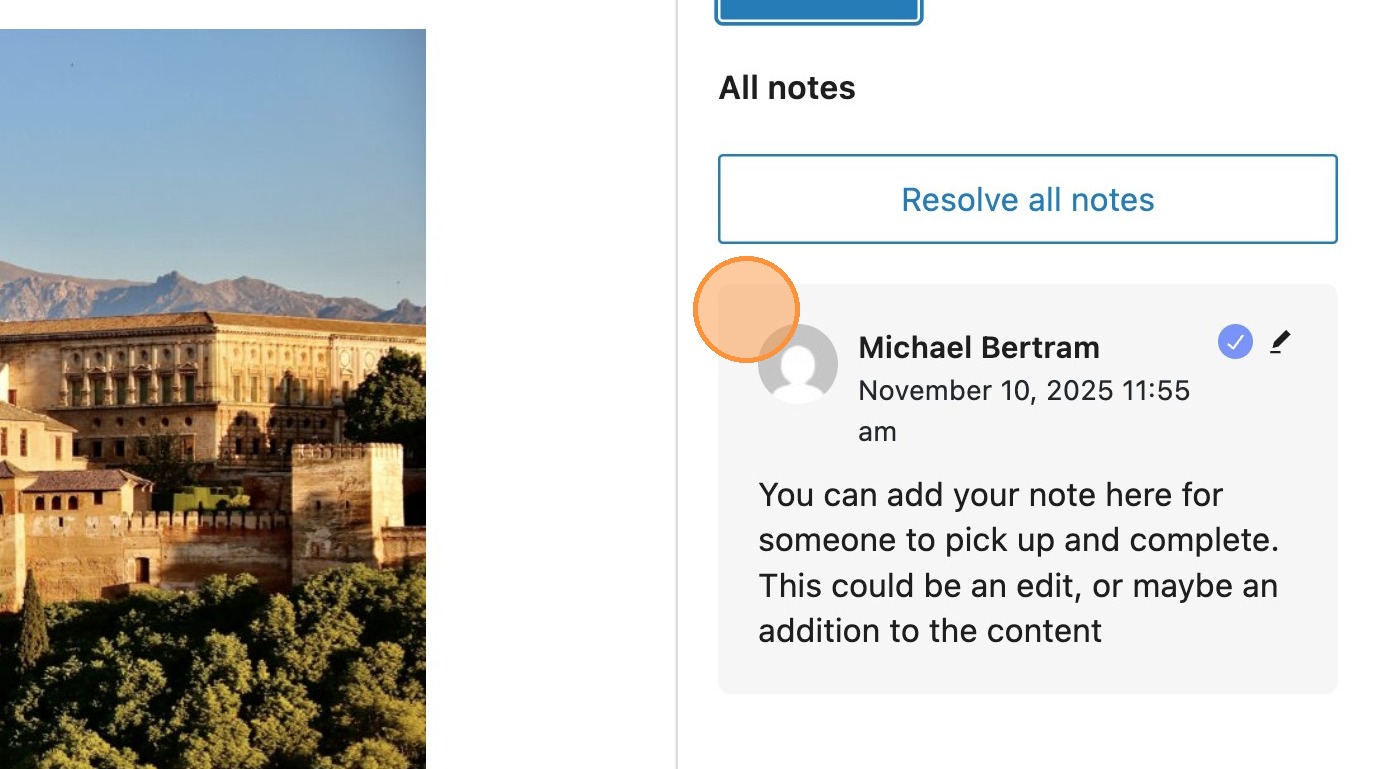
5. Any notes that exist on the post will appear in the panel, timestamped with the date they were added.

6. From here it’s possible to edit the note with any required additions.
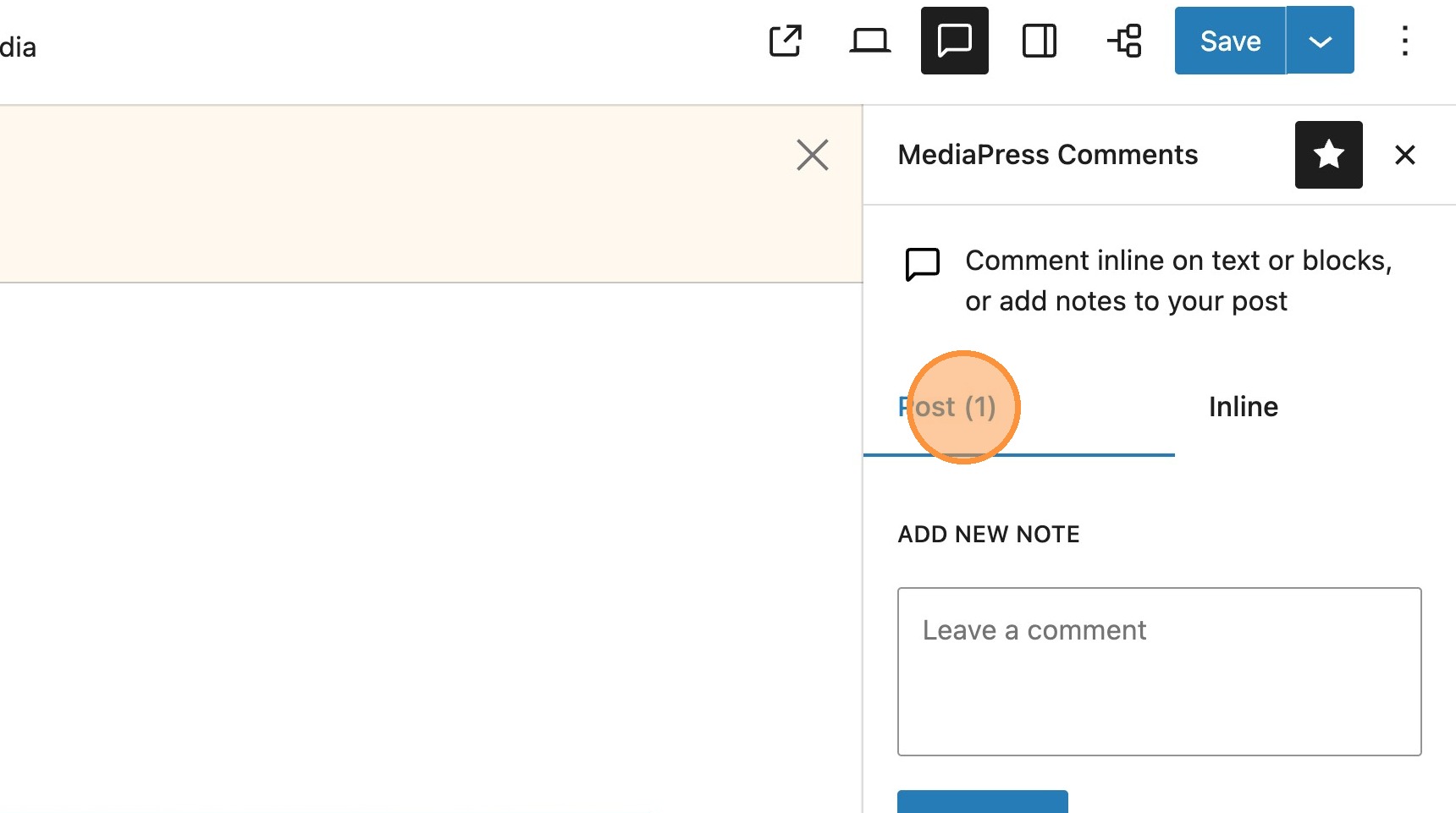
7. You will notice that the tab heading updates with the total amount of comments attached to the post.
Adding inline comments
8. The second way to add a comment is inline. You may have some specific block based changes that are required. Clicking on the block will show the comments icon in the block toolbar. In the same way you can now add your comment and save.

9. Any blocks that have attached inline comments will have the comment icon highlighted.
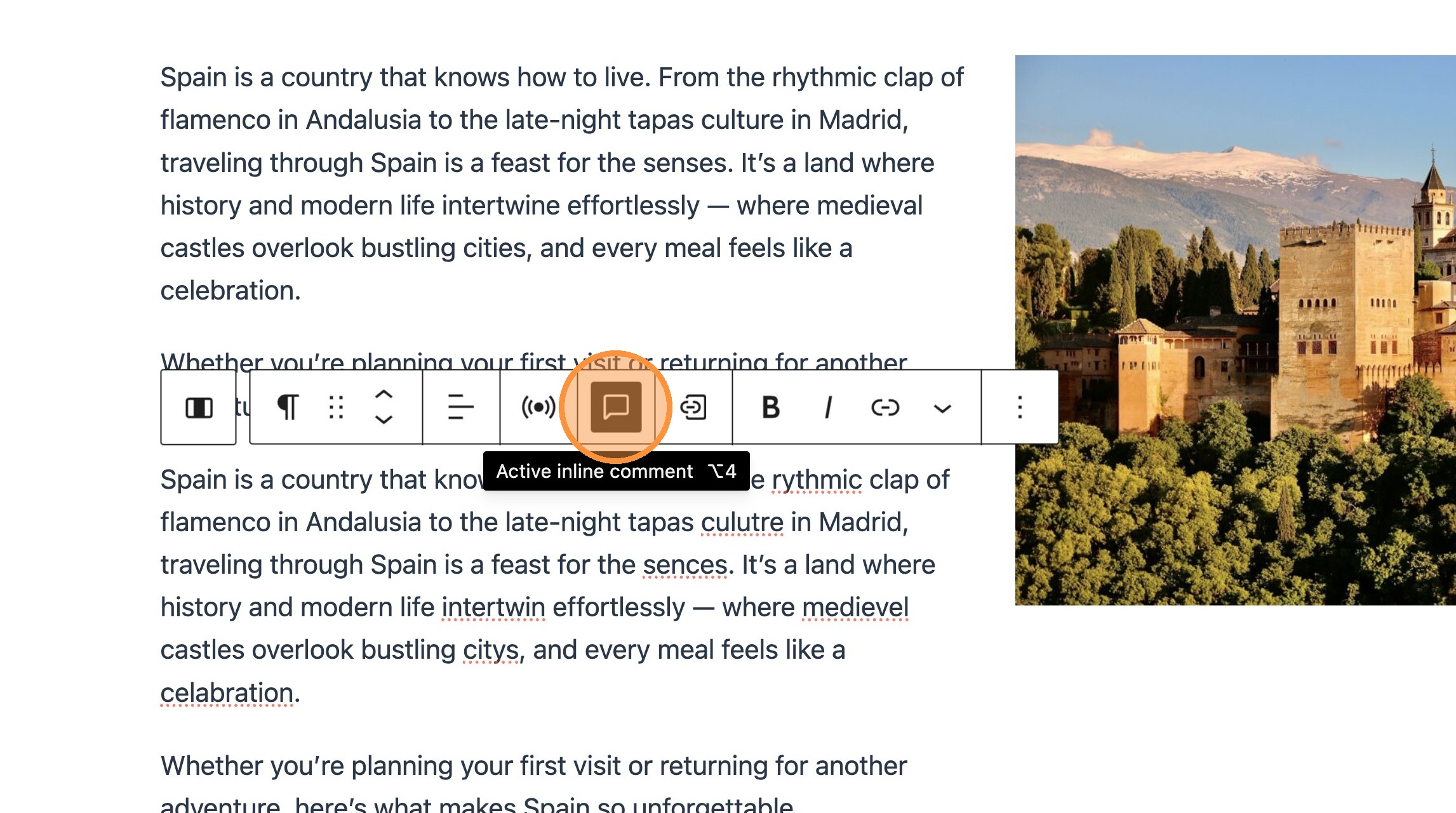
10. The comment will also appear in the inline tab in the sidebar.
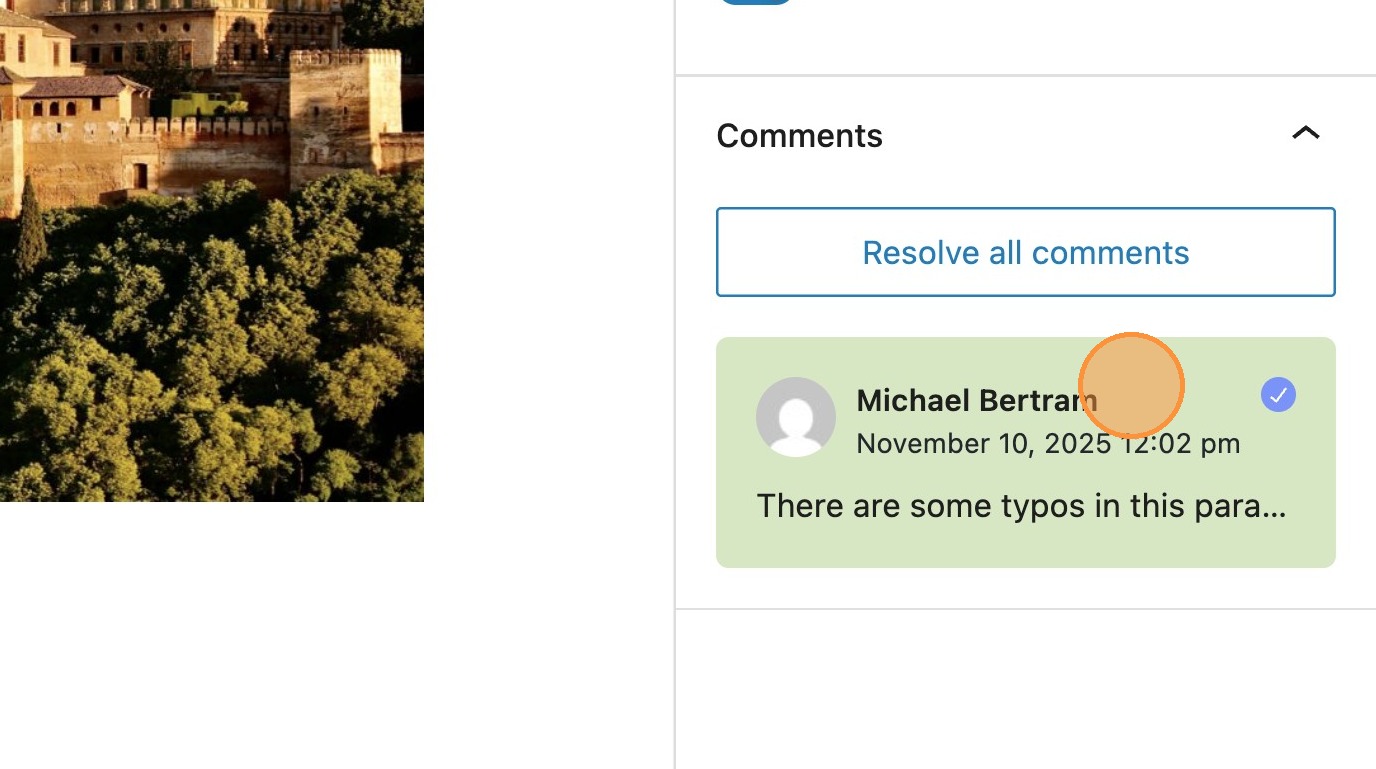
11. A post can include as many inline comments as necessary. They will appear in descending order of date created.
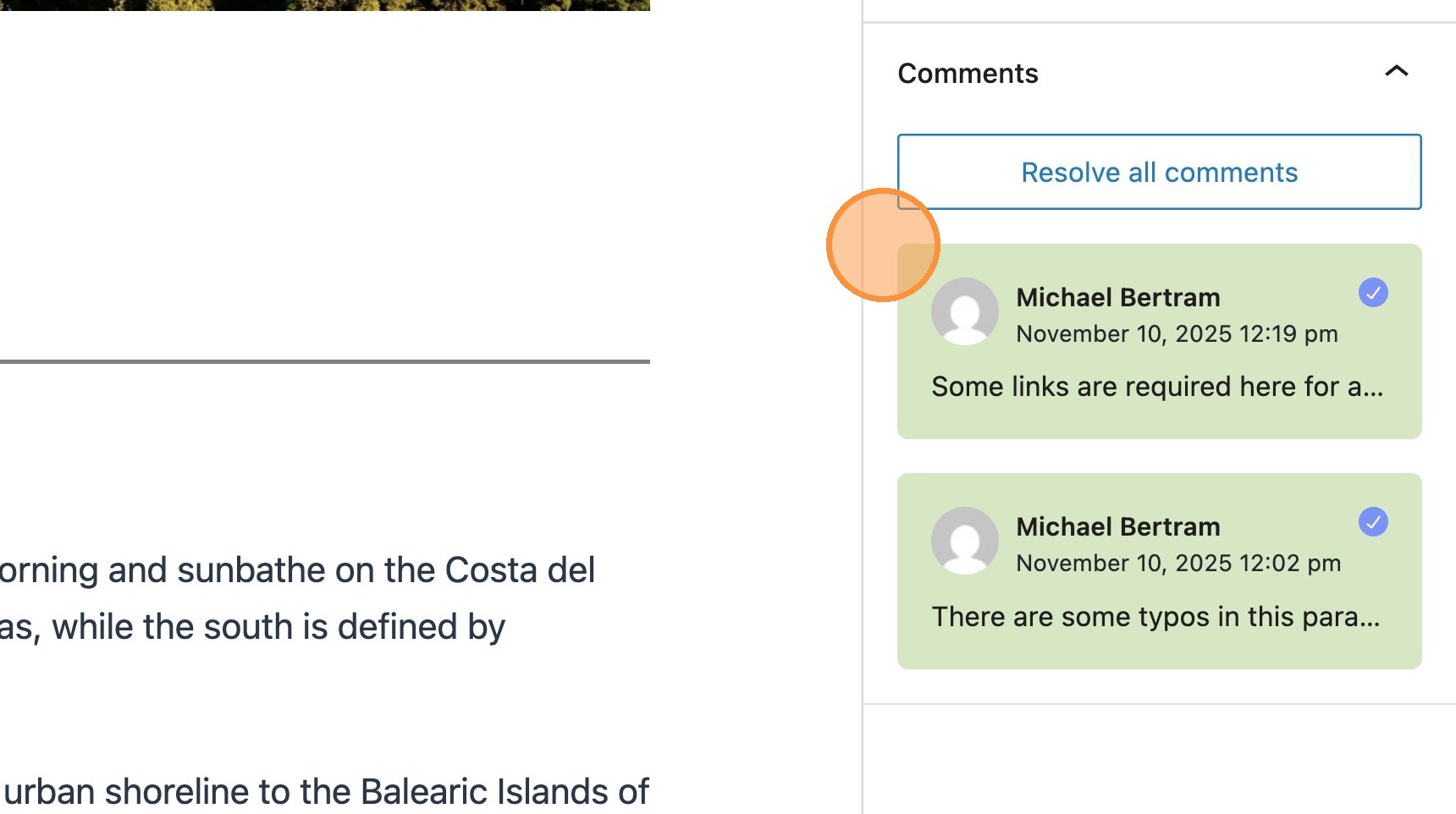
12. To edit a comment click on it and this will bring a view of the comment to the top of the panel, where it’s possible edit the comment.
Comments in the dashboard
Tip: There are a couple of ways to view existing comments within the dashboard.
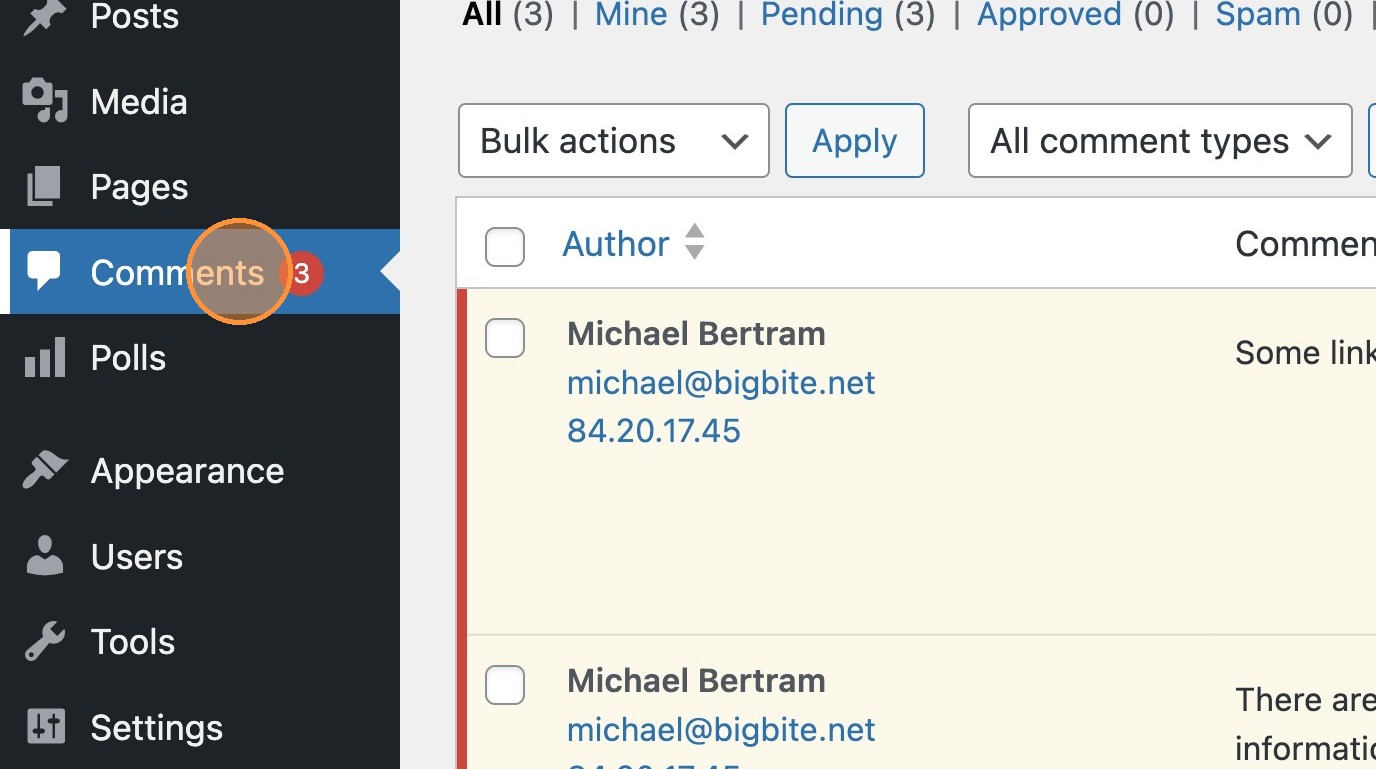
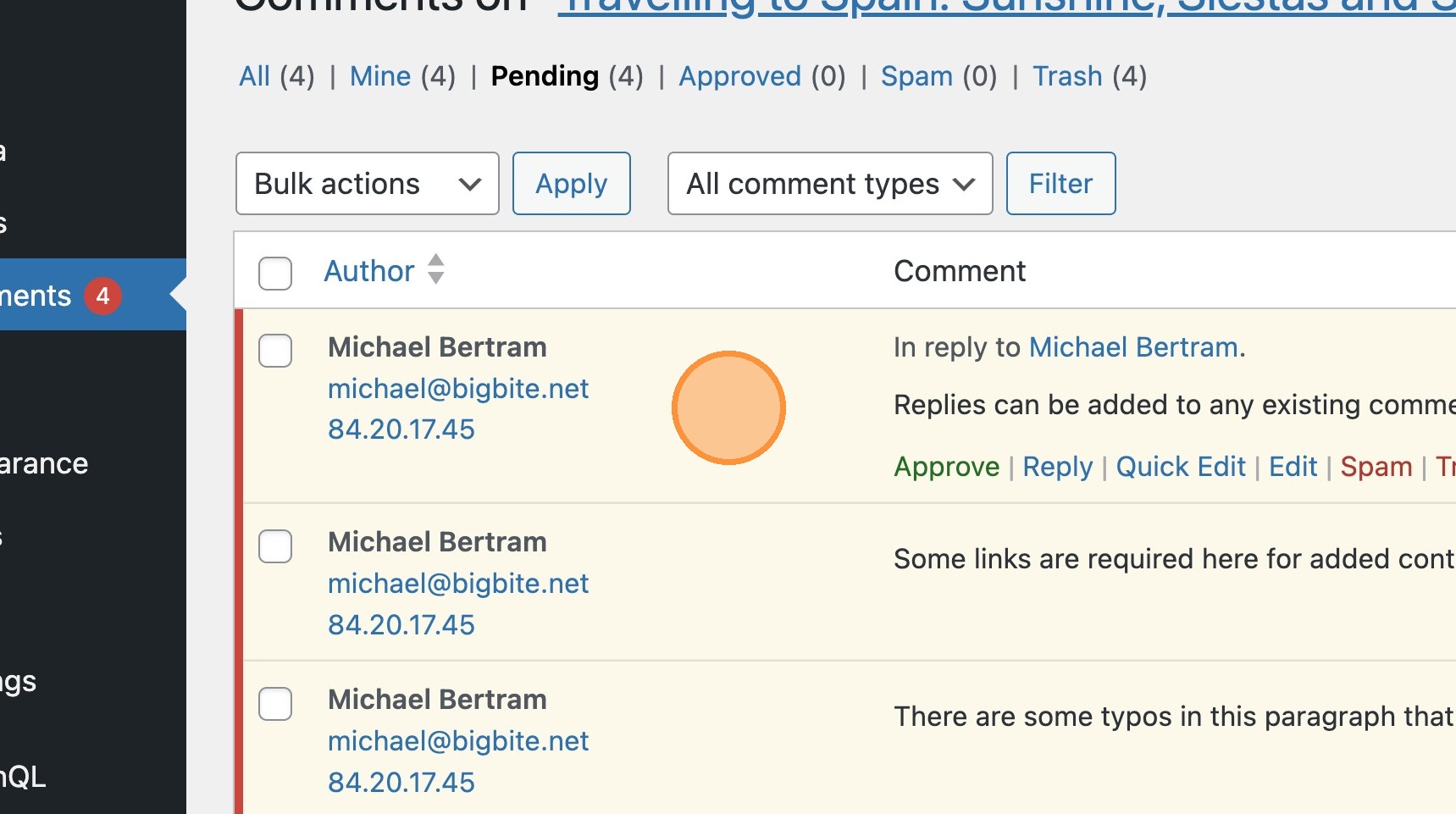
13. You will see a comments tab in the dashboard sidebar. This shows a list of all comments within the current site, listing the author of the comment, comment preview and related post the comment responds to.
14. Selecting the icon highlighted will take you to any comments which exist within that current post.

15. At post level existing comments are shown in the MediaPress comments column in the list of posts. The number inside the red circle represents the amount of existing unresolved comments on the post. The number inside the icon represents the amount of resolved comments.
Replying to comments
16. Replies can be added by selecting the relevant comment in the sidebar and leaving a comment in the modal. All replies are stored within this modal.

17. In the dashboard, you will see that replies exist as their own instance, but they have an additional “In reply to” prefix.
Resolving comments



18. To resolve a comment once complete, select the tick icon. After confirmation of the selection, the comment will be greyed out in the sidebar.
19. When returning to the dashboard, you will see that the number inside the icon has been updated to reflect the number of resolved/approved comments.
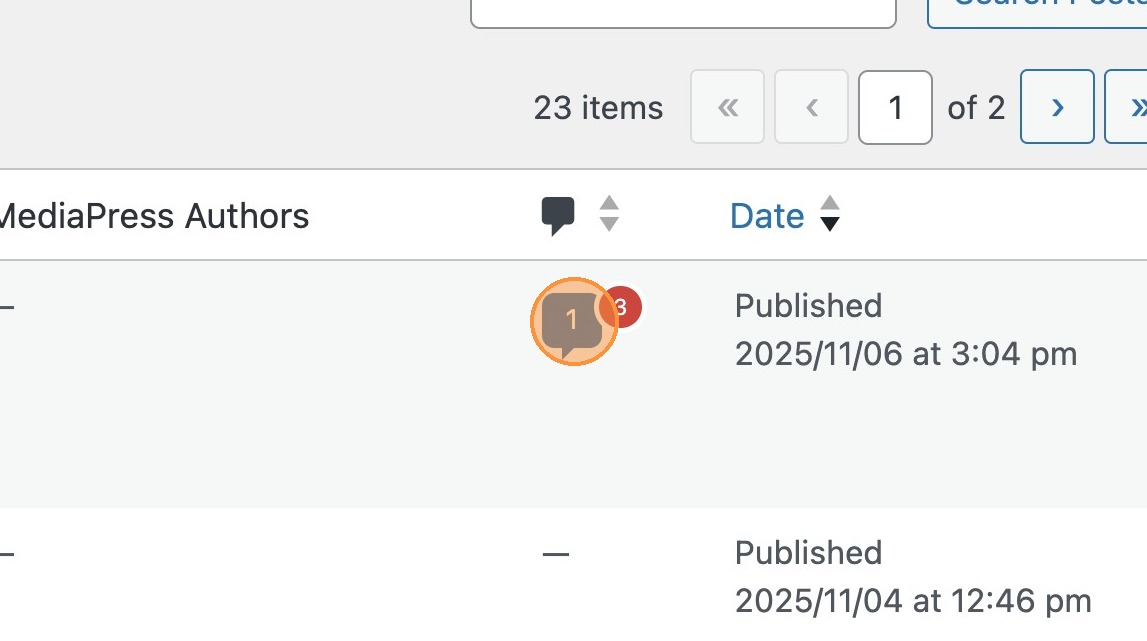
20. Comments can also be resolved/approved in the dashboard, with changes showing in the sidebar alongside the values in the icon.