Creating a poll

Polls is a custom post type and can be treated like any other post type, such as page or post. The key difference with this post type, is that a custom block exists to allow the insertion of any poll within either of the other post types.


1. To create a poll, select polls from the sidebar, and add a new poll.
2. The first thing to do is to add a name for your poll.
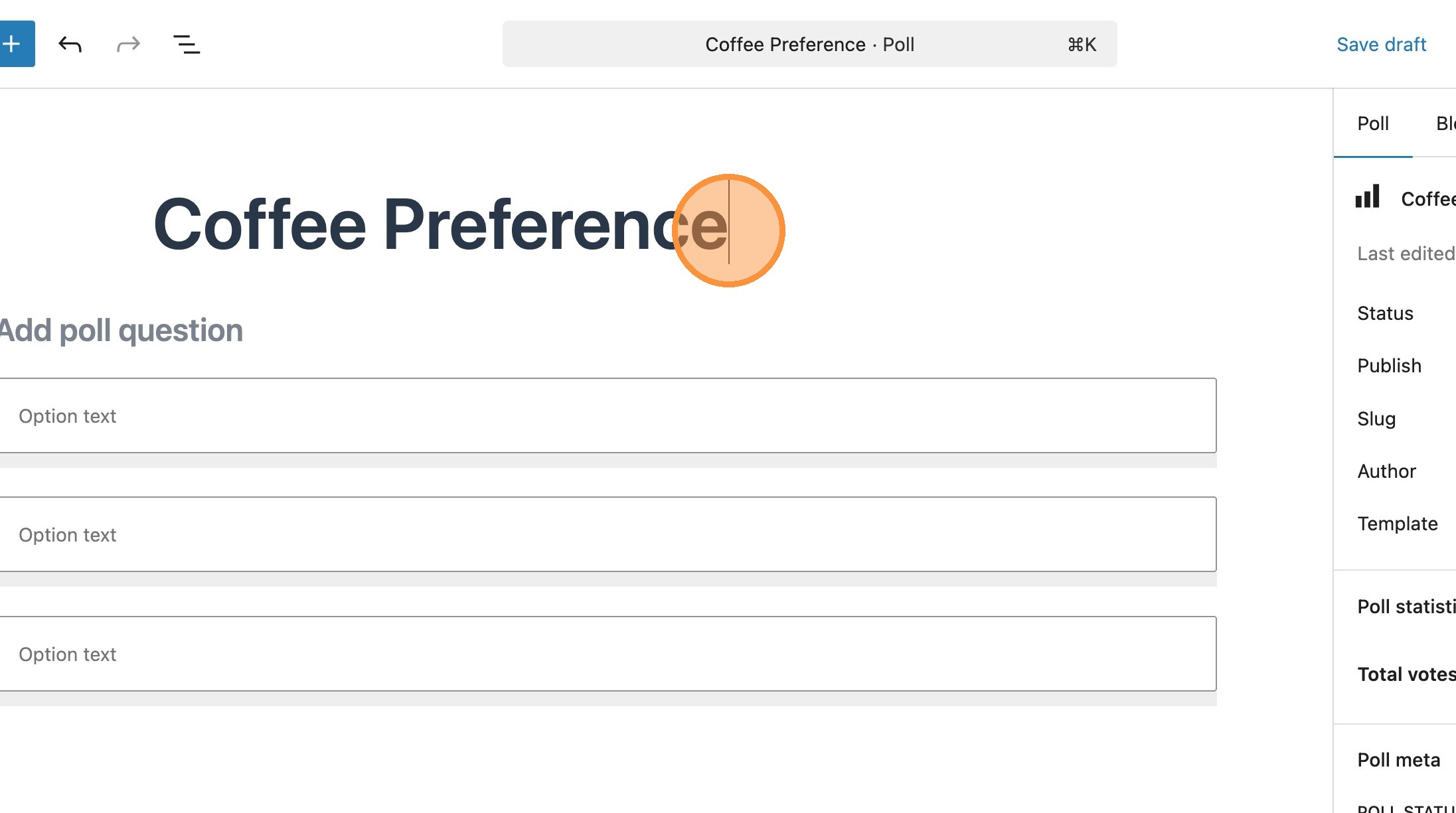
Its important to note here that the poll name is a stored as a meta field. The Poll question is what will display on the frontend. This can be the same as the name or slightly different.
3. Add your poll question.

4. You can now add your poll options. By default a poll will include 3 poll options.

5. To add additional poll options, simply select to add after on an already existing poll option. You can add as many options as you wish.


6. Just like any other block, its position can be altered using the arrows in the block toolbar. As you can see here we have moved the last option up in the list.

Within the sidebar, there is some key data for the block. As shown in the below demo, here you can set the status of the poll, and see how many votes the poll currently has. We’ll go into these options in more detail later in the guide.

7. Select publish to publish your new poll.
Adding a Poll to a page or post
You’re now ready to add your poll to a page or post.
8. Add the new page or post that will include your newly created poll.

9. Search for and add a Poll block. You will see the option to create a poll, but will also see the option to choose from a list of Polls. Here you will see the poll you have just created.

Please note: The list of existing polls is limited to the last 3 created. If you can’t see the poll you’re looking for, simply use the search function to locate it.

10. Once added, you will see your poll, with the meta you set previously. This data can also be updated within the page or post, using the controls in the sidebar.
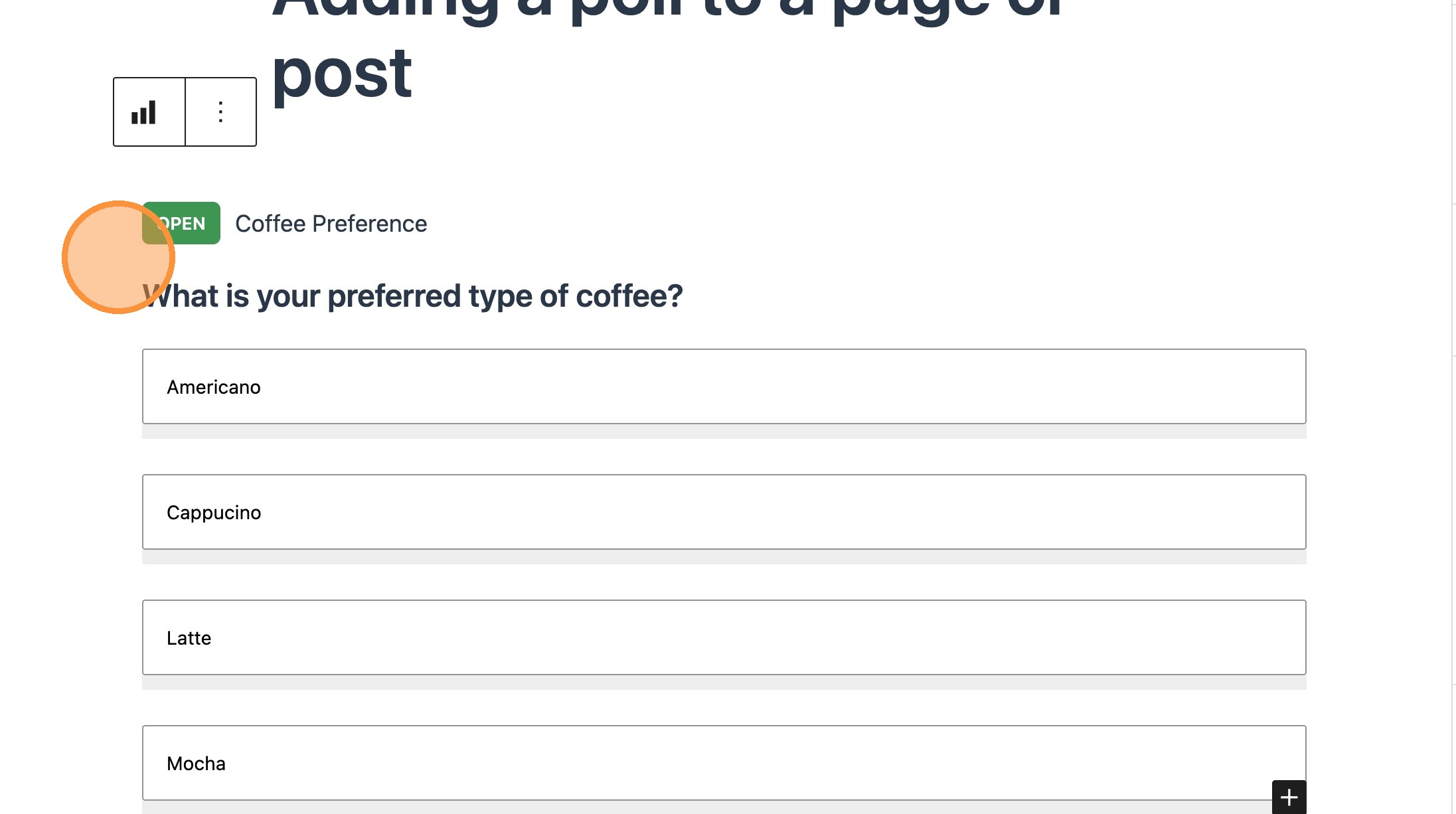
11. You will see that altering the name will update the name immediately in the editor.

12. When in the editor, you will see that the poll has a status tag. Updating this in the sidebar, will also update immediately in the editor.
Your poll on the frontend

13. Save and view your post.
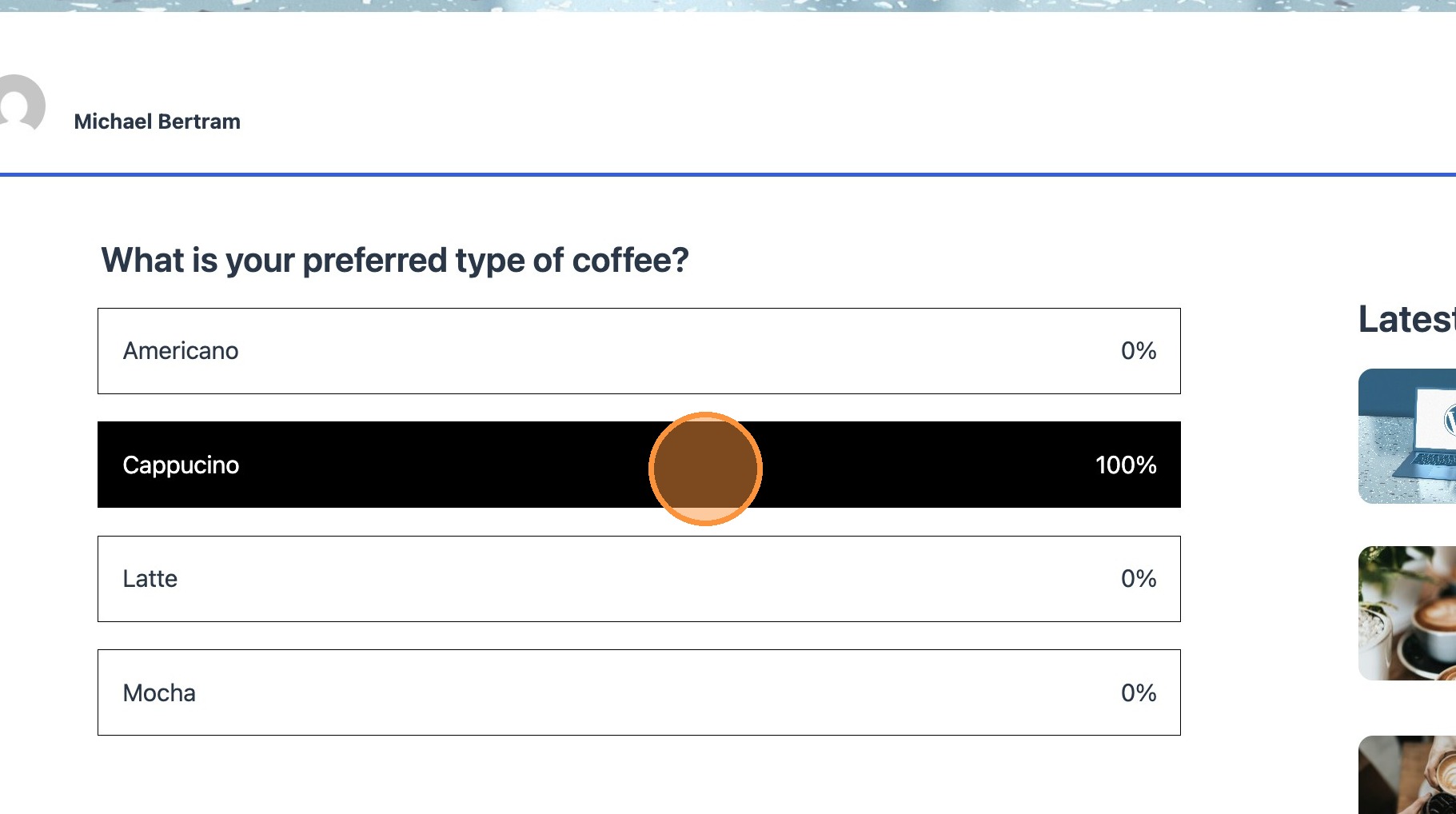
14. On the frontend, your poll will appear as an interactive component that allows users to select an option. Once an option is selected, the votes will update automatically, displaying the percentage based on the total number of votes.
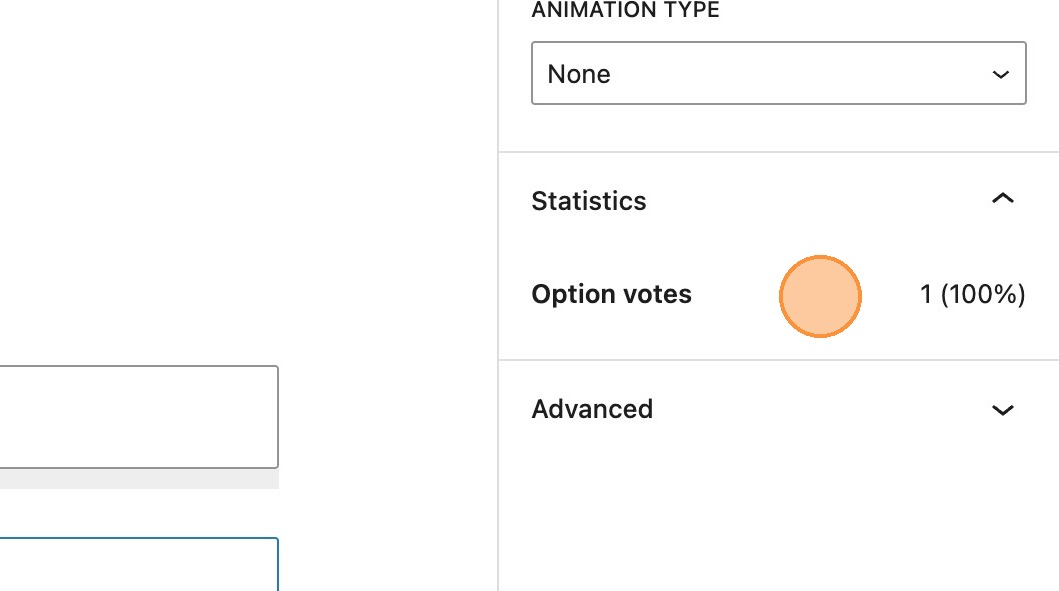
15. When you return to the editor, any poll option that has received votes will appear in a different colour to indicate activity. Additionally, the total number of votes will be reflected in the poll statistics section within the sidebar, updating to match the latest results.

16. It’s also possible to view independent statistics per poll option.
Updating the poll status

17. By default, the status will be set to open and a tag will be shown in the editor just above the poll title.

18. Polls that have ended will display the final results but will no longer allow users to make selections.

19. Polls that have been closed, will have a closed tag in the editor, but will not be visible at all on the frontend.
Creating a poll within a page or post
20. If you wish to include a poll in your post content but haven’t created one in advance, you can create a new poll without needing to leave the post you are working on. To begin, search for and add a poll block.

21. You will notice that initially the create new poll button is disabled.

22. Populating the poll question field will enable this button. Select create new poll.

23. This will show the poll options. You can now go ahead and enter your options just as before.

24. On saving the page or post and returning to the WordPress dashboard, you will see your newest poll in the list of existing polls.
Quizzes
Please note: It is recommended that before reading through this guide, you read the guide for polls as quizzes extends the functionality of this plugin.
Adding a quiz block
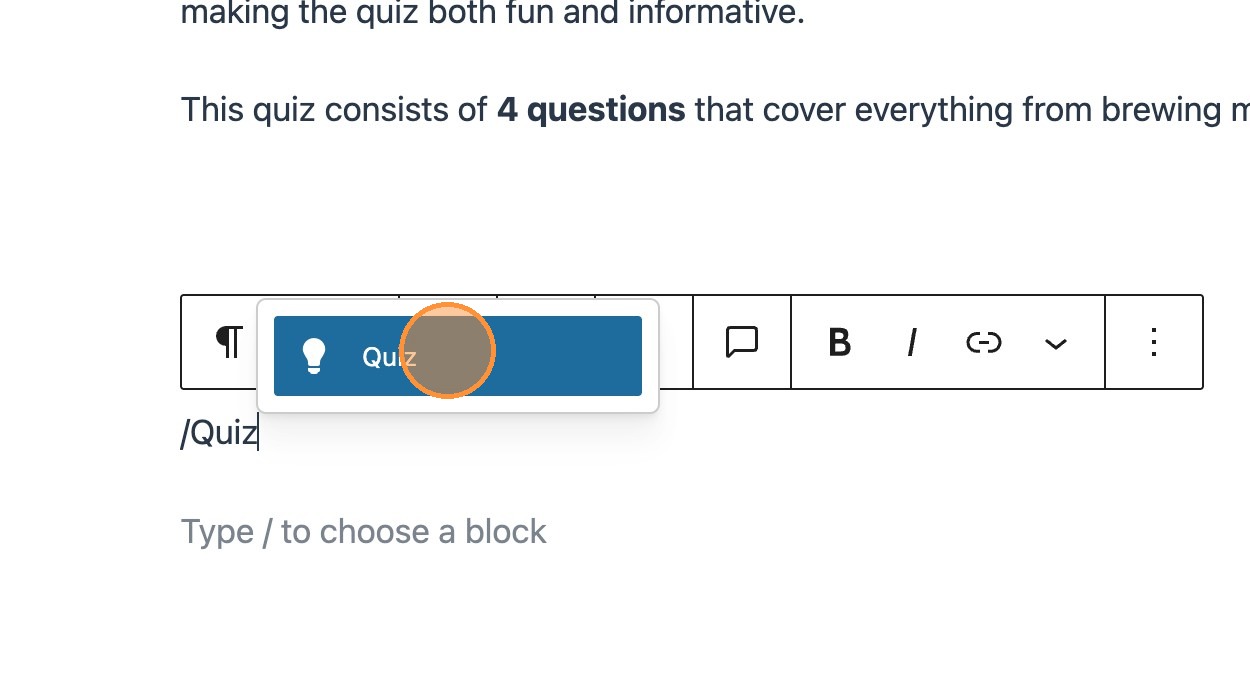
1. Start by searching for and adding a quiz block.
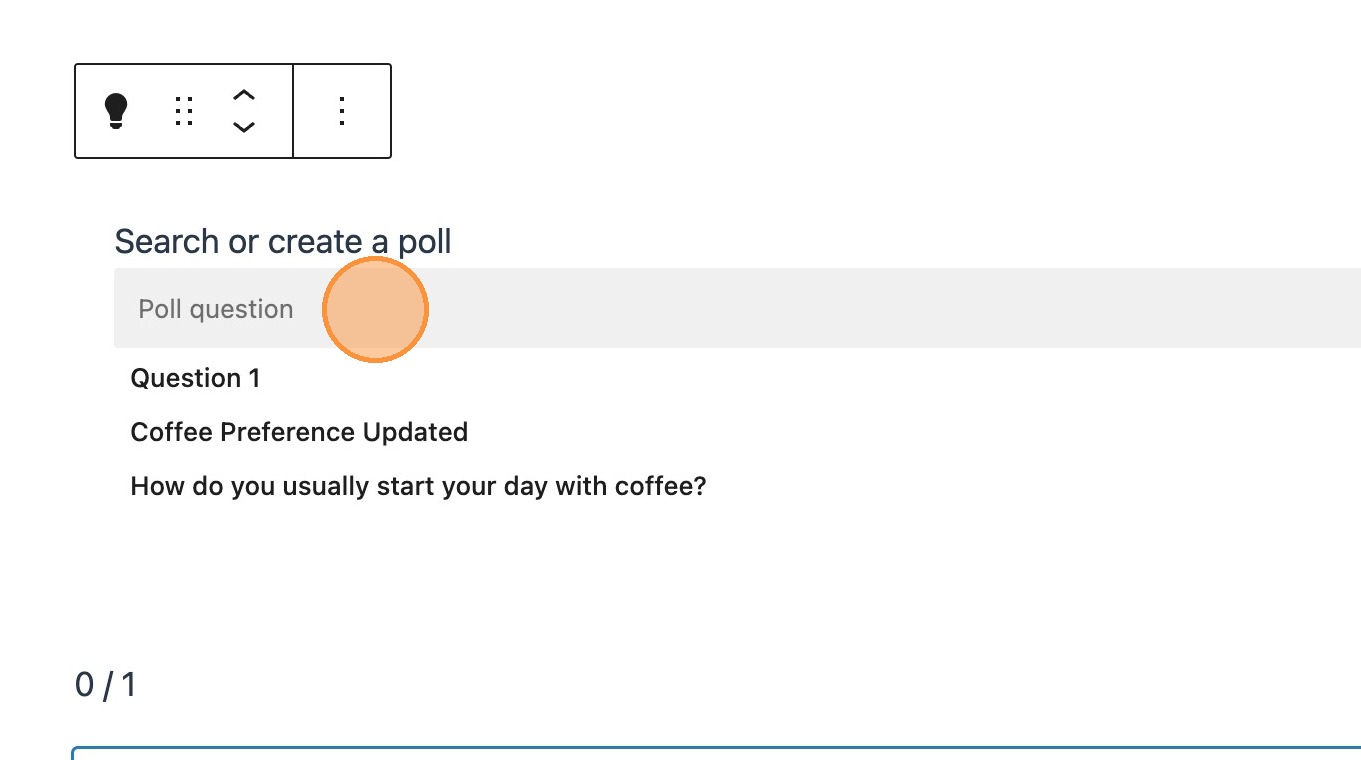
2. By default the quiz block includes one poll block. Just like when adding a standalone poll block in a post, the name will inherit the poll question. This can be changed in the sidebar.
3. You can now add your first question, and select create new poll.

4. Add your poll options. These will be the multiple choice answers for your question.


5. Polls, inside a quiz wrapper, include the same meta fields as a standard poll, visible in the sidebar.
6. Alongside these, is an additional field to store the correct answer.

Please note: In order for the poll to act as a question within the quiz, a correct answer MUST be selected. If not then the poll will default to its standard behaviour.
Displaying the results of the quiz

7. As part of the structure of the quiz block, below the questions you’ll find a quiz result block, which contains the quiz Total element. This section dynamically updates as you add more questions.
Adding additional questions
8. Below the quiz results block, you will see an icon to add additional polls. This will add a poll within the quiz wrapper, directly below the previous question.
Tip: Add the required amount of questions, setting the correct answer for each.
At this point it’s also important to note that its possible to create all of the desired questions as polls within the WordPress dashboard. You can then select these from the list of existing polls when adding your questions in the quiz.
9. You should now see your populated quiz in the editor. With the addition of these other questions, you will notice the quiz total block updates, to reflect the amount of polls within the quiz.
Interacting with the quiz
10. Save and view your post or page.
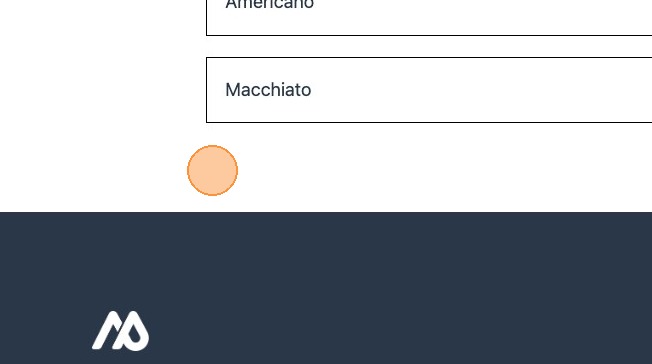
11. You will notice that the quiz results block, initially, is not displayed. This block will be displayed when all of the questions have been answered to provide a score to the user.
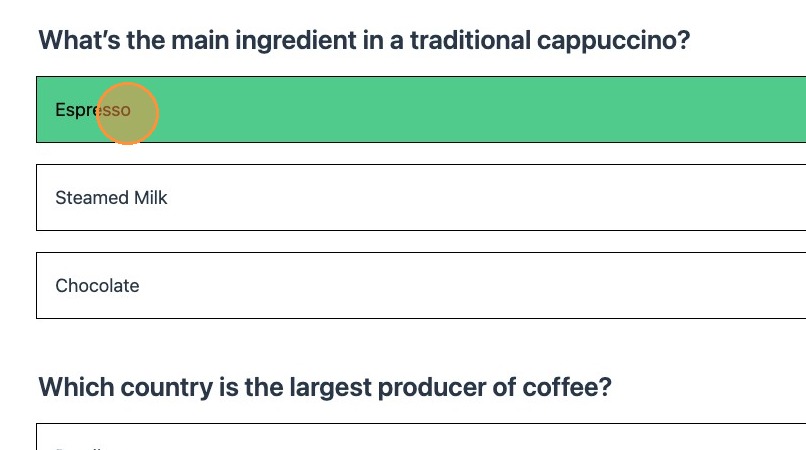
12. If the correct answer is selected by the user it will turn green.
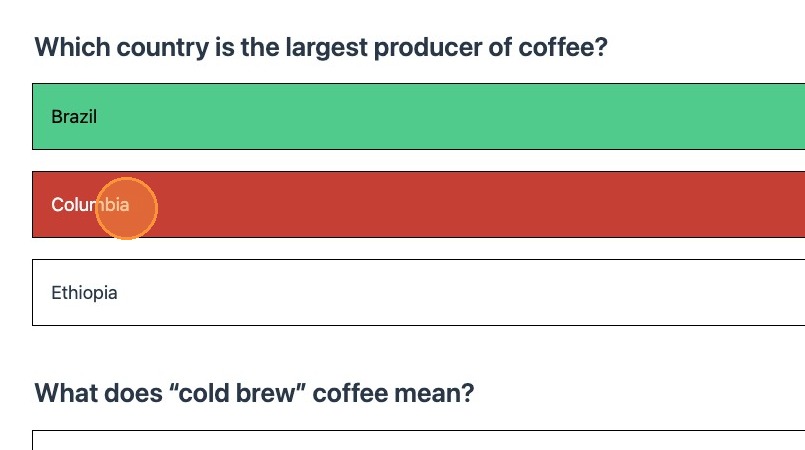
13. If an incorrect answer is selected then this will be shown in red. The correct answer is also highlighted in green.
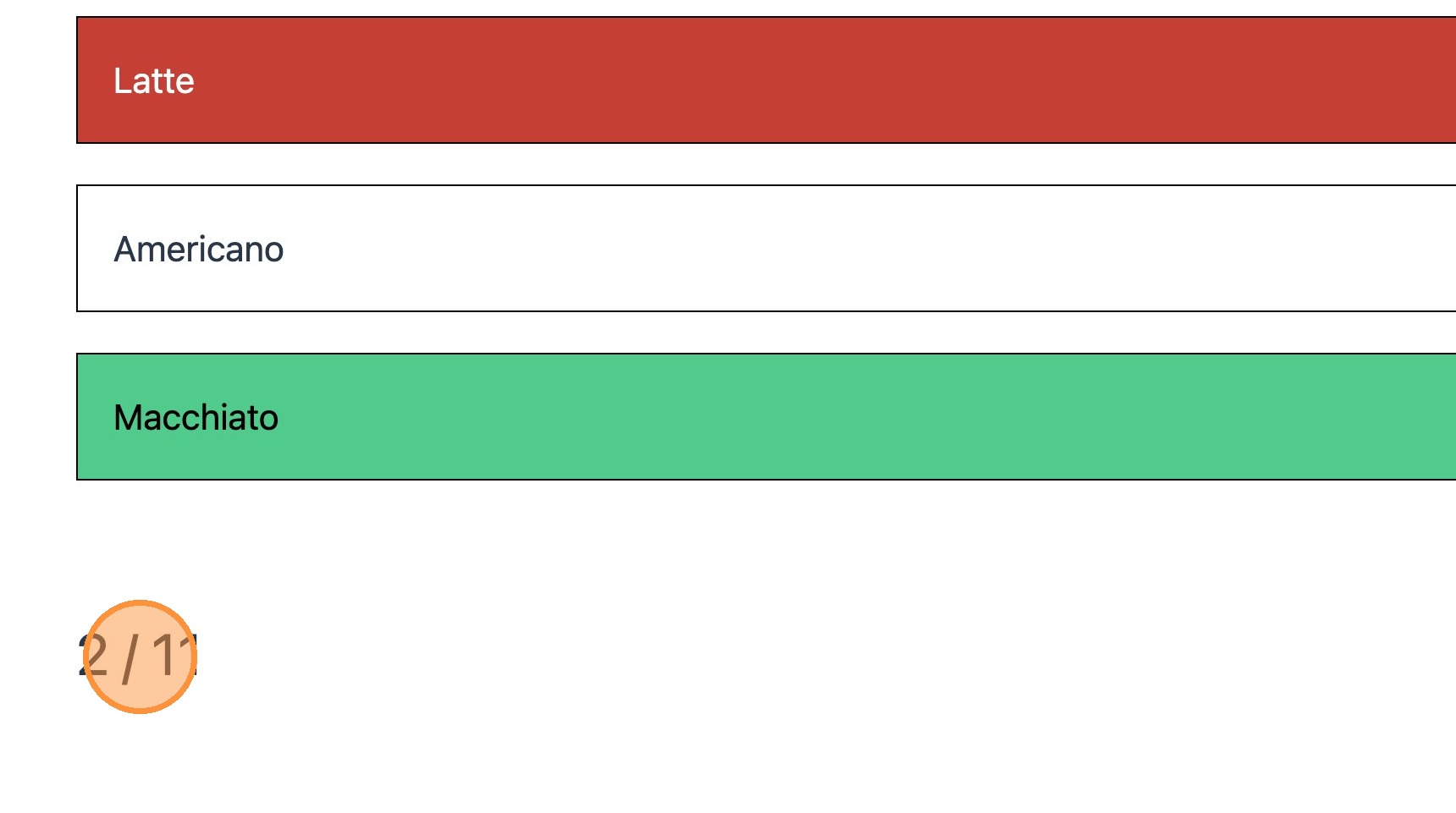
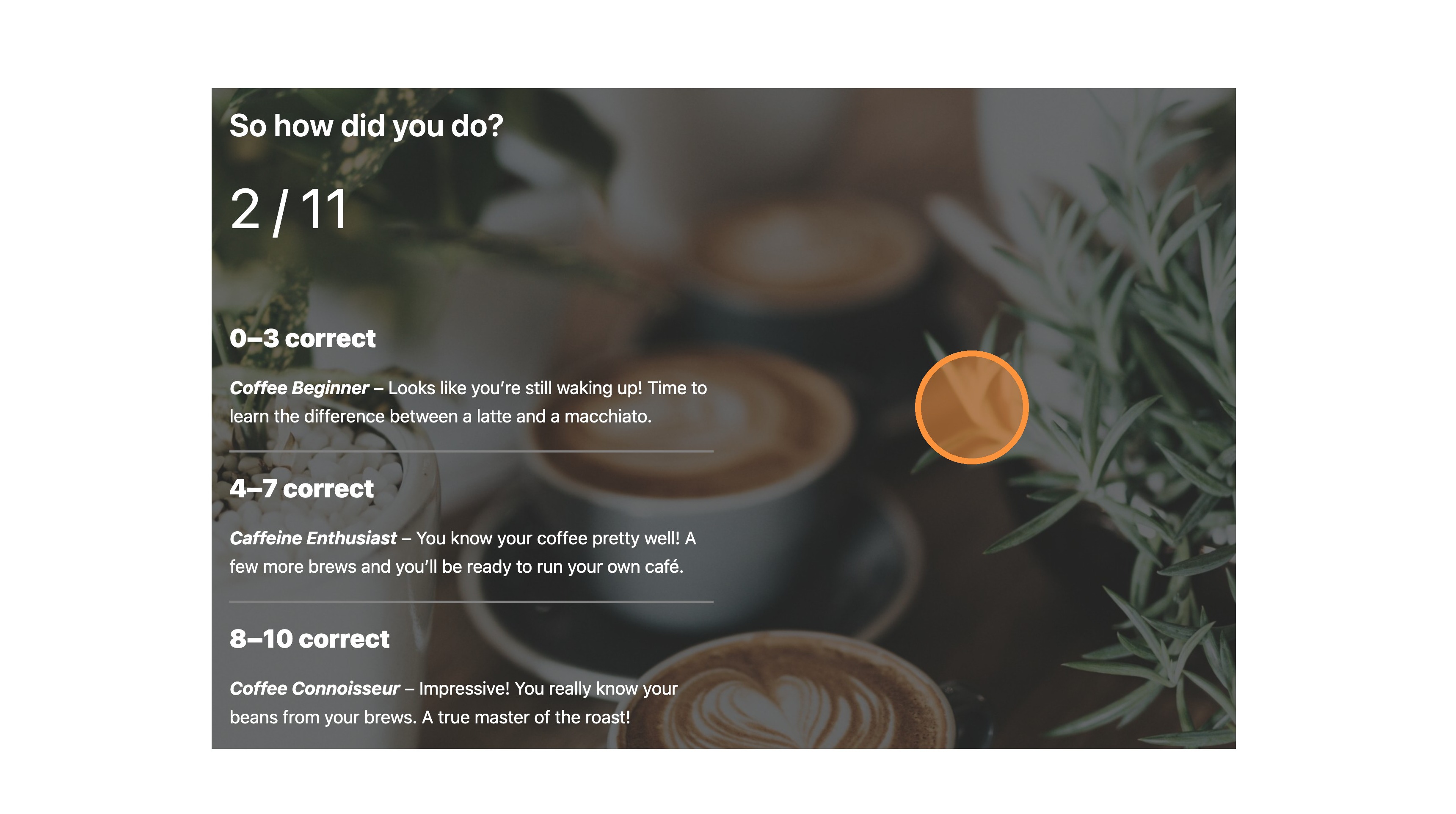
14. Once the final question has been answered, the quiz result wrapper is rendered, showing the score.

15. When you return to the editor, you’ll see the quiz results displayed directly within the poll options, with any selected choices highlighted in blue. The total votes for each option will also appear in the sidebar, allowing you to review how users responded. Unlike a standard poll, these results show total votes only, not percentages.
Improving the results display
The quiz result block functions as a wrapper, meaning you can nest multiple blocks inside it, just like you would with a standard group block. This flexibility allows you to combine different elements, such as text, images, or custom blocks, within the quiz result wrapper.
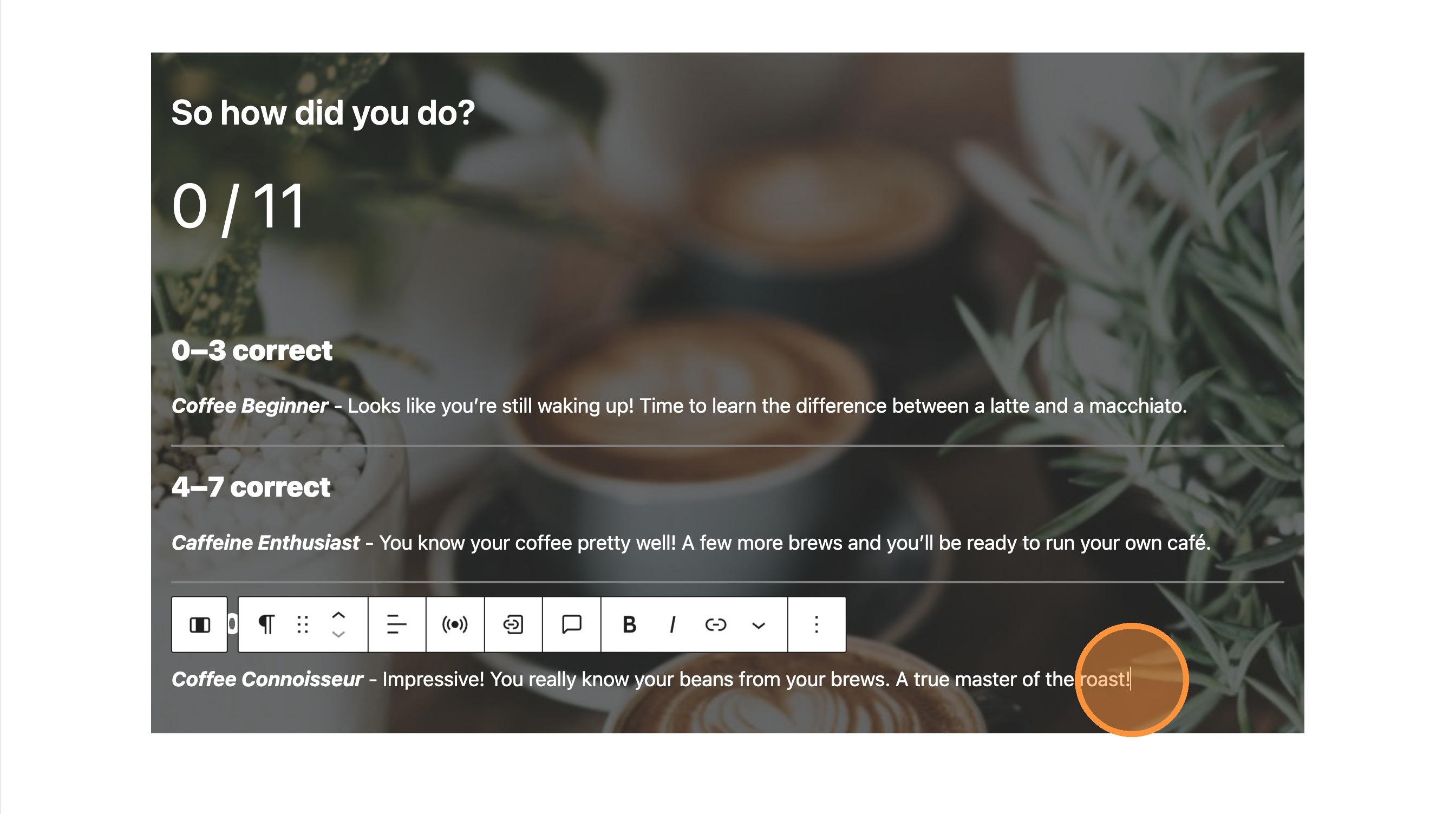
16. In this example, a Cover block is used with Columns inside to create a simple layout of headings and paragraphs that display information based on the user’s score.
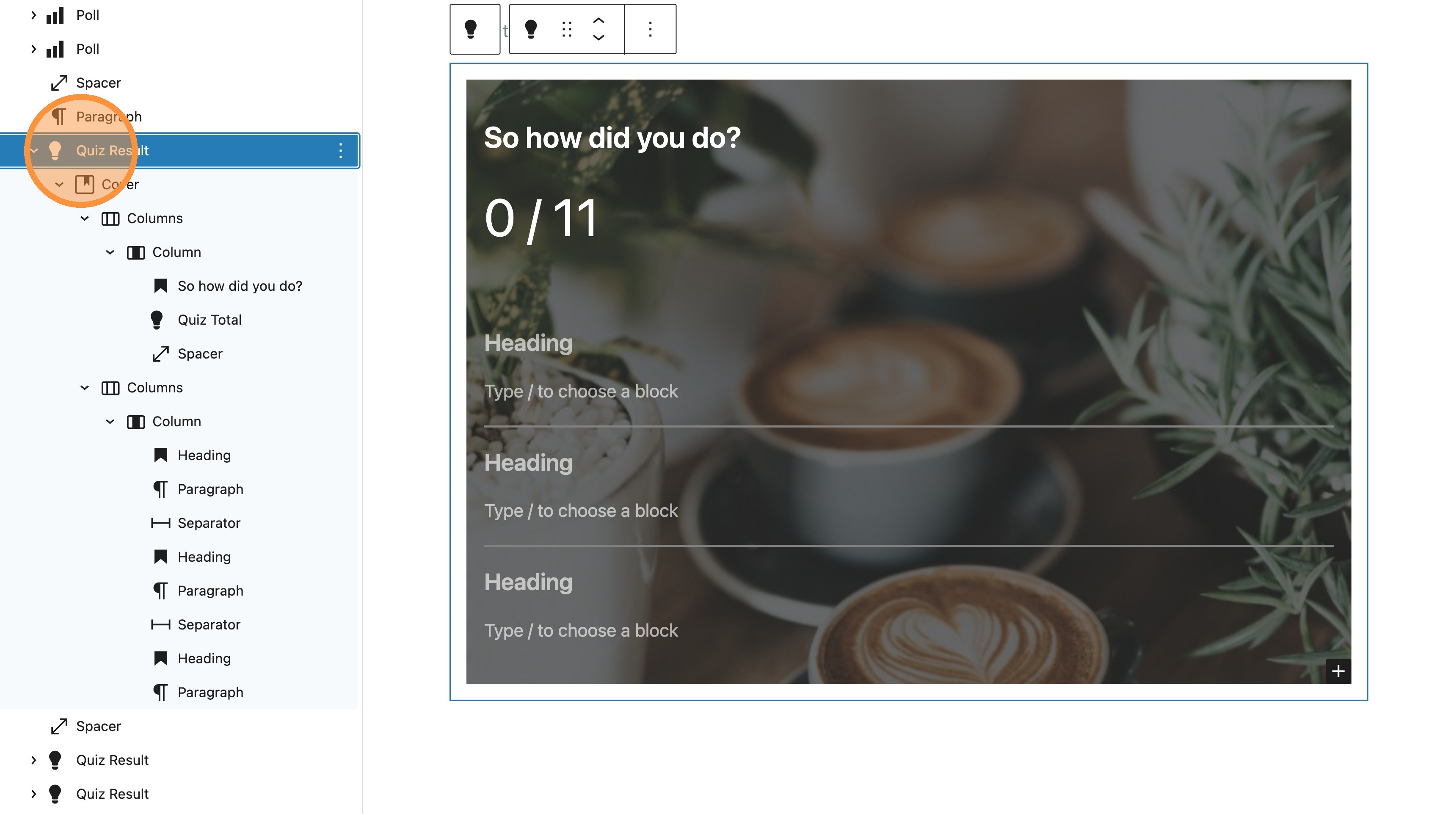
Because of this structure, you can also create a block pattern that includes a predefined layout for your quiz results, making it easy to reuse and maintain a consistent design across multiple quizzes.

17. Select to create a pattern from the existing Quiz Result block wrapper.

18. You can now enter the name and category of your pattern. At this point, make sure you toggle the synced pattern option off. This will ensure that any edits you make to the quiz results layout are specific to this quiz and won’t affect other instances of the pattern across your site.
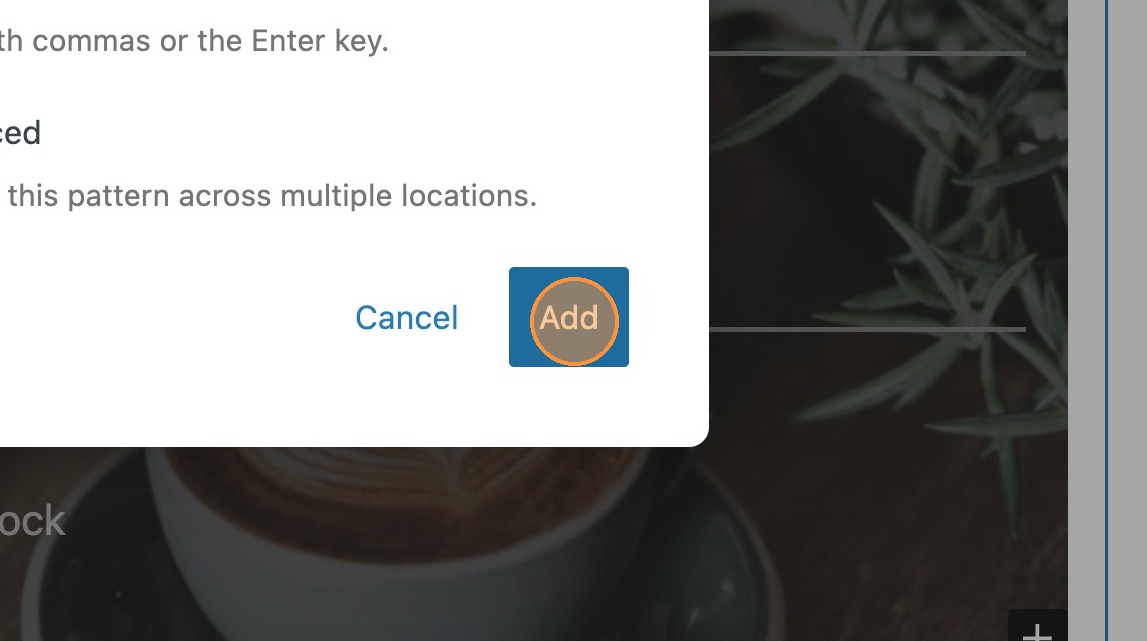
19. You can now add the pattern.
20. Now, lets add details specific to your quiz, providing users with more immediate and visually engaging feedback.
21. Save your changes and view your post.
22. On the frontend, you should see that the pattern is now rendered once the quiz is completed, displaying the user’s final score and result summary.
23. Now when creating a quiz, you can add the quiz results pattern and customise the headings and paragraphs as needed.